Sector matching
How every activity gets a base sector, and how to review and correct it.
Nios's default factors come from datasets that describe the world economy in sectors, such as "Vegetable oils", with one factor per sector and country. To calculate an activity, Nios needs to know which sector it belongs to: its base sector. You select it yourself, or Match finds it for you.
Nios calculates 17 environmental pressures (metrics) per activity, such as GHG emissions and land occupation. From the base sector, it derives the best sector for each metric, the metric sector, in the dataset that holds that metric's factors.
Sector systems
A base sector comes from one of three sector systems. Its metric sectors are GLORIA sectors or EXIOBASE products.
| System | What it covers | When it helps |
|---|---|---|
| HS/CPC | Six-digit product codes, for example 151110: Palm oil, crude | The most precise choice for physical goods |
| GLORIA 120 | 120 economic sectors | Default factors for 12 of the 17 metrics, including GHG emissions, land occupation, and water consumption |
| EXIOBASE 200 | 200 products | Default factors for the 5 eutrophication metrics |
See the Metrics reference for which dataset serves each metric.
Set a base sector
An activity gets its base sector in one of two ways. Either way, Nios calculates the activity as soon as it has one.
Let Nios match it
Click Match to match every activity without a base sector. To match only some activities, select their rows and choose Match row from the row menu.
Sector matching reads two columns of each activity, its matching signals:
- Activity: Required, and the main signal. Describe the purchase as specifically as you can, for example "Palm oil, refined" instead of "Oil".
- Supplier: Helps when the activity name is short or ambiguous.
Other columns, such as the country, don't affect matching. See What Nios needs.
For each activity, Nios first looks for a sector with exactly the same name. Otherwise it shortlists candidate sectors, and an AI judge picks the one that fits best and rates the match quality. If no candidate fits, the activity gets the issue "No base sector match found".
From the base sector, Nios then derives the metric sectors through fixed mappings between the sector systems. Where a mapping offers several candidates, the AI judge picks the best one for the activity. Nios then calculates the activity.
Nios keeps each match for the project. Activities with the same Activity and Supplier get the same base sector, and matching them again gives the same result. When you change the Activity or Supplier of an activity Nios matched, Nios matches it again with the new signals. Matching skips activities that already have a base sector, so it never overwrites one you selected.
Select it yourself
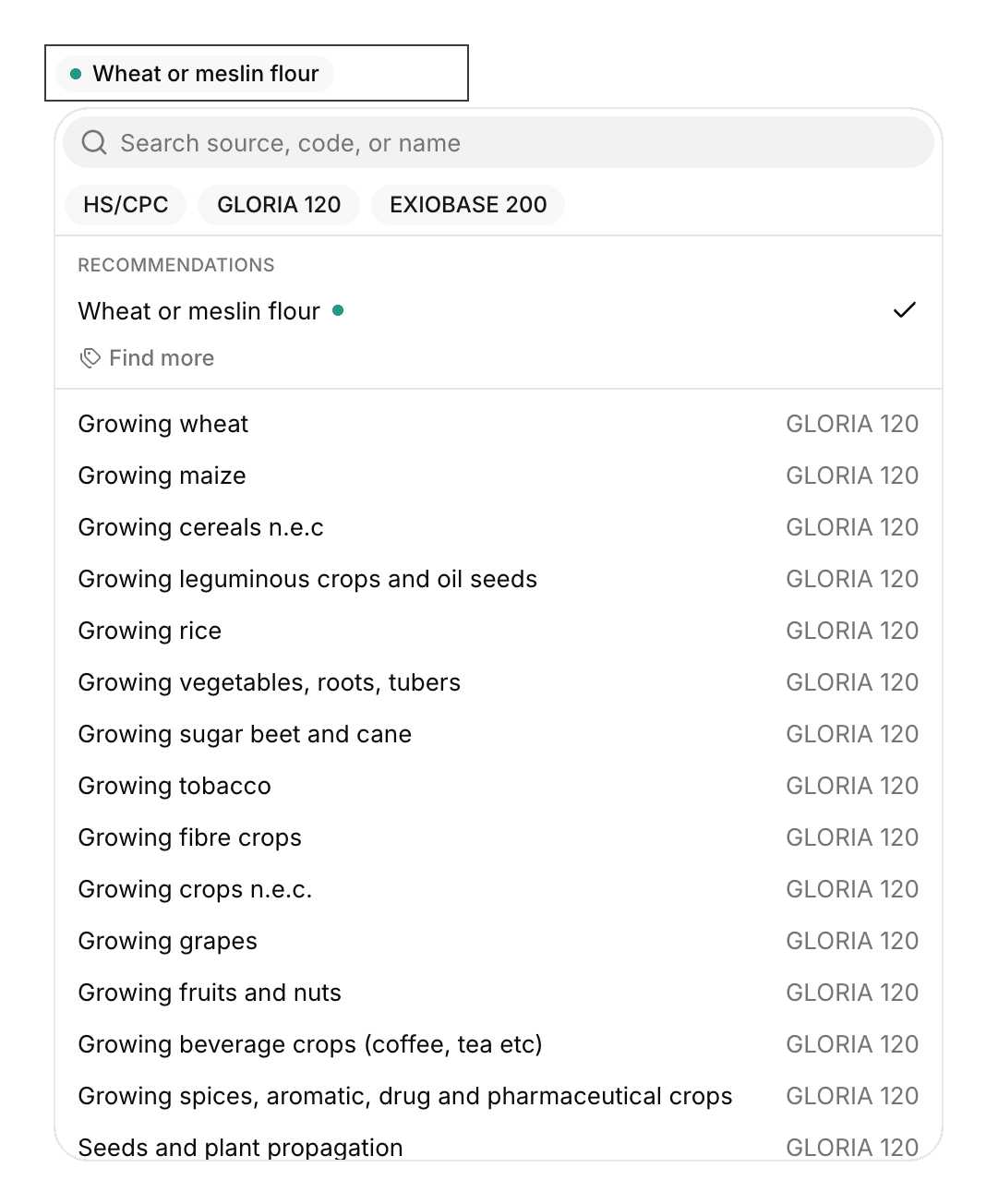
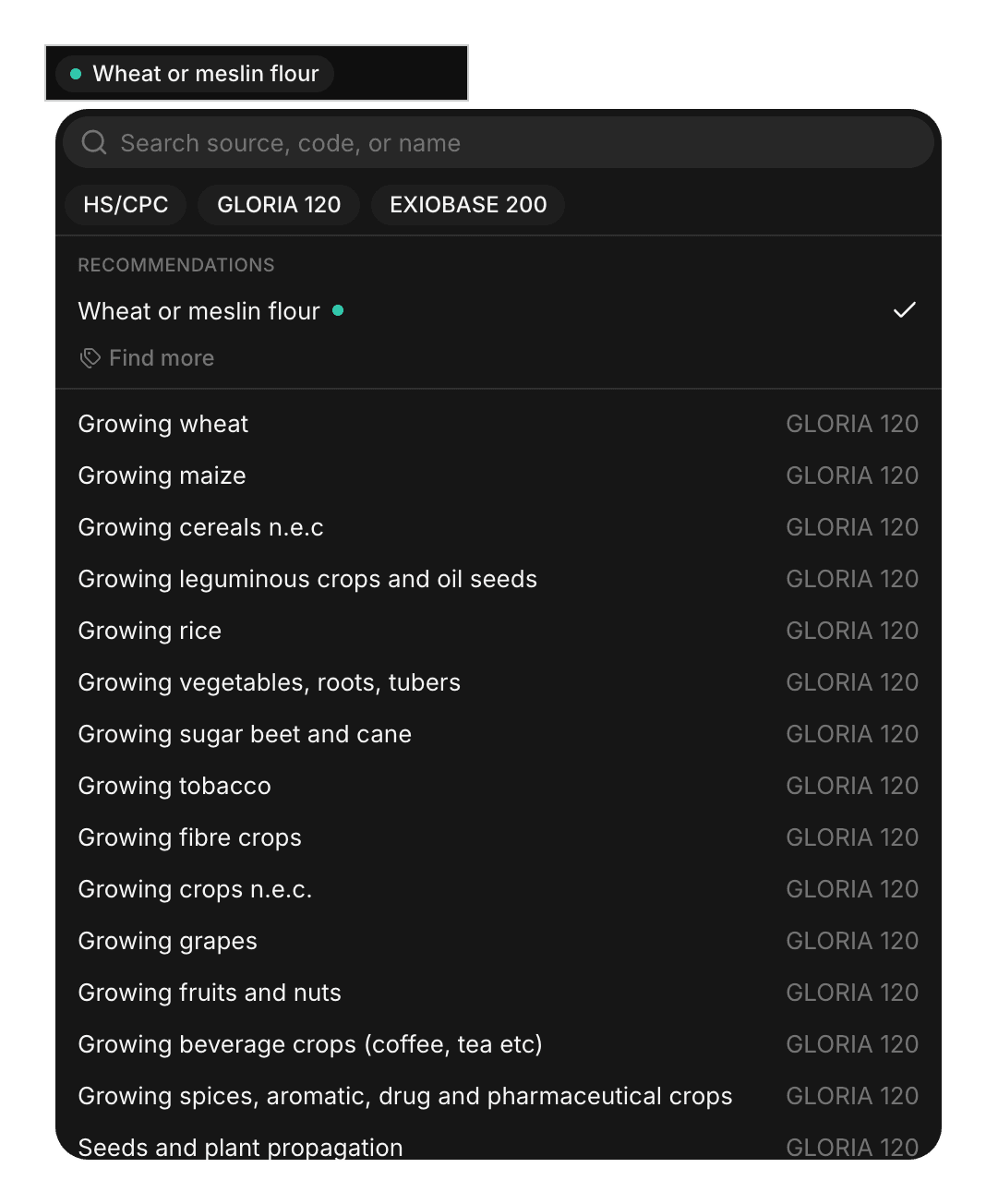
Click the Base sector cell, or the base sector at the top of Matching > Activity. Search by source, code, or name, and filter by sector system. Find recommendations suggests sectors based on the activity.
Match quality
A dot in the Base sector cell shows how the base sector was set:
| Dot | Match quality | What it means |
|---|---|---|
| Green | Excellent | The activity clearly is the product or service of this sector, or has exactly its name |
| Yellow | Good | The sector is defensible, but the activity is broader or narrower than the sector, or fits several candidates. Worth a review |
| Blue | User selected | You selected the base sector yourself |
In Matching > Activity, the match quality comes with the judge's reason for its pick.
The Matching view
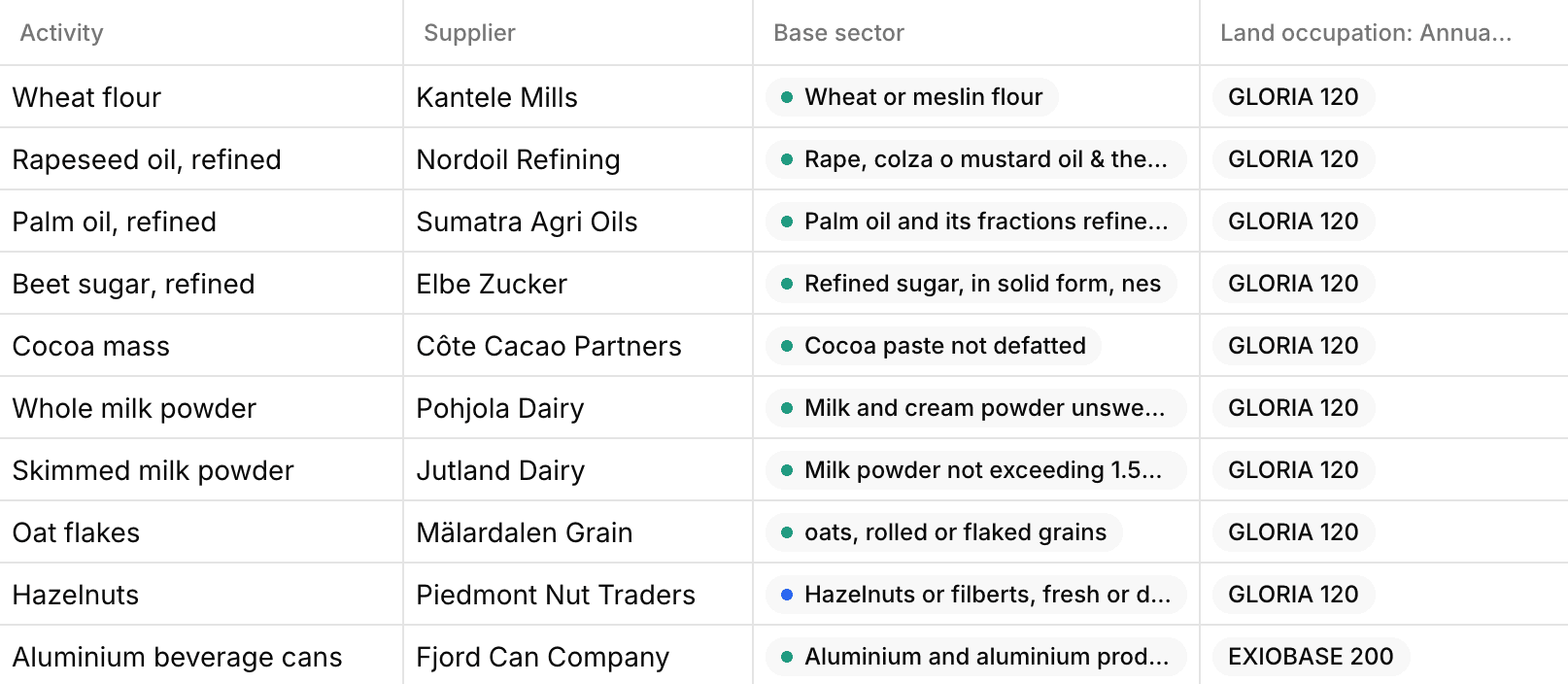
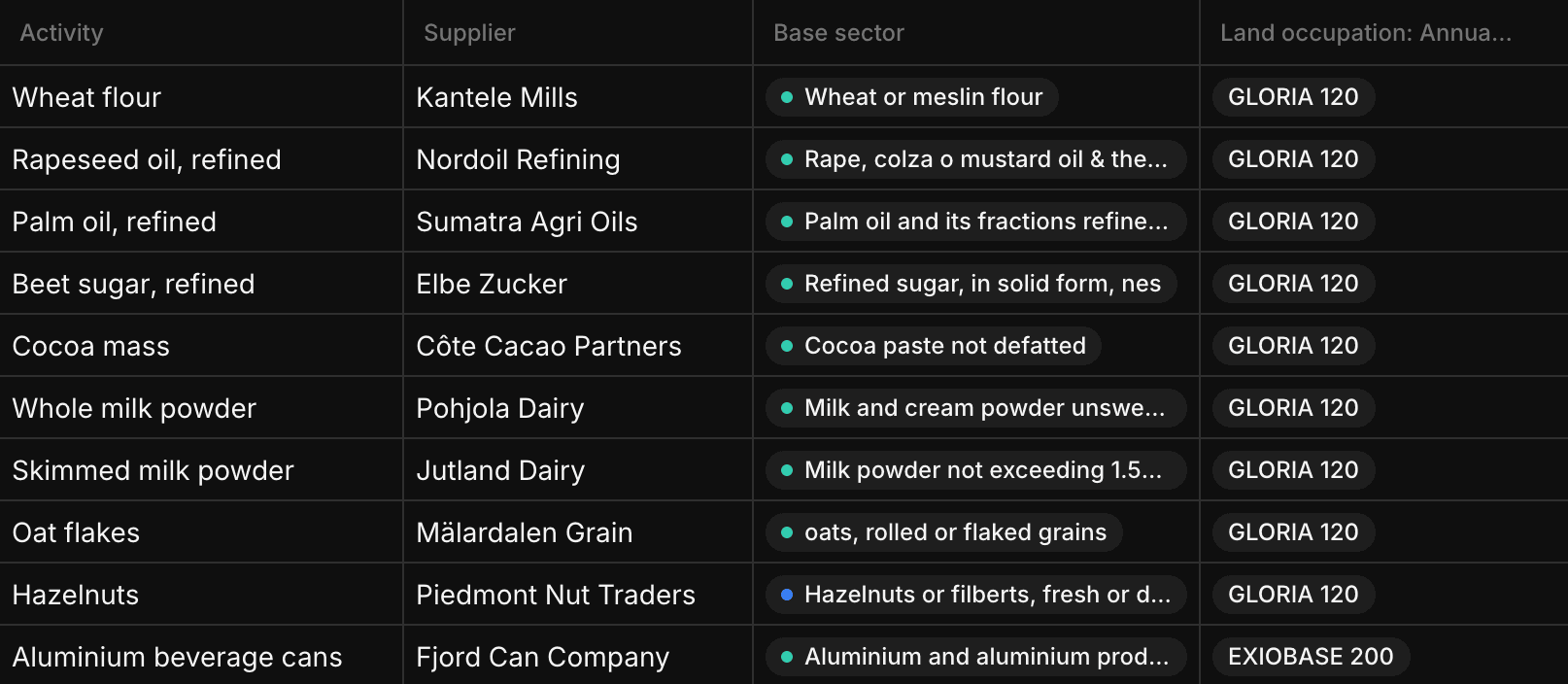
When you click Match, the grid switches to the Matching view. It shows Activity, Supplier, Base sector with its match quality dot, and one column per metric with the dataset or impact input in use.
You can choose a different view to open on Match, see Views and filters.
Review and improve matches
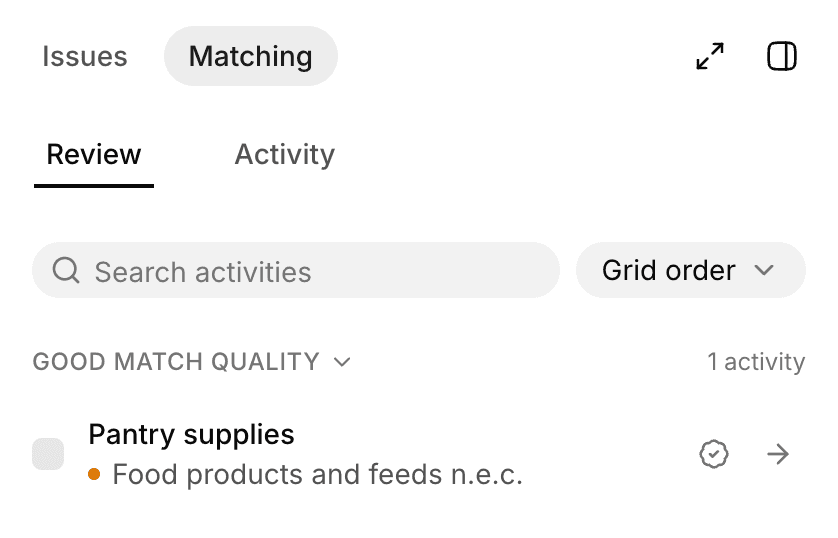
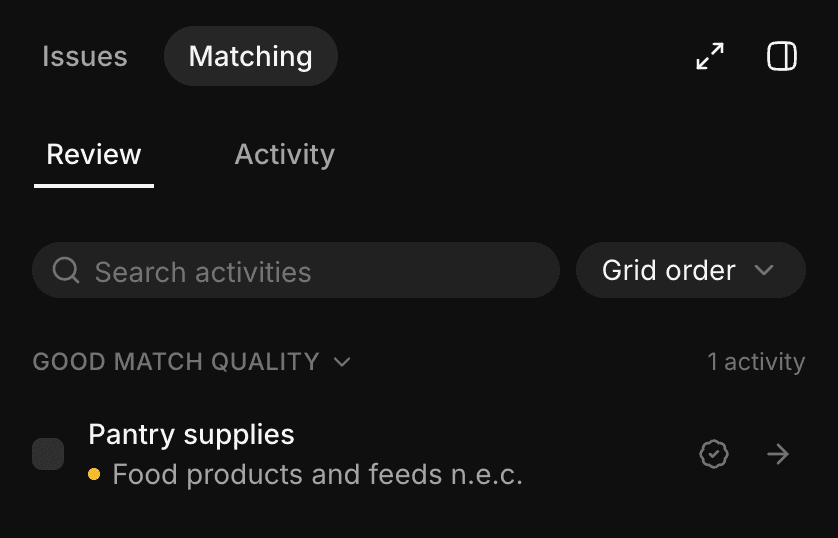
After matching, open the side panel and choose Matching > Review. It lists the activities that need your attention, so you don't have to go through the whole grid. Work through its sections from top to bottom:
| Section | Why an activity is listed | What to do |
|---|---|---|
| Base sector issues | Sector matching found no base sector that fits the activity | Describe the purchase more specifically in Activity, or add the Supplier, and Nios matches it again. Or select a base sector yourself |
| No metric sector found | The base sector has no counterpart in the dataset for some metrics, so Nios can't calculate them | Select another base sector, for example from another sector system. Or select a sector or impact input for the affected metrics |
| Good match quality | The match is defensible but not a clear fit | Check the match, see below |
| Confirmed | Good matches you confirmed | Nothing to do. Undo confirmation moves a match back |
Show in grid jumps to the cell to fix: the base sector, or the first metric without a metric sector. The messages behind the first two sections are explained in Matching issues and Calculation issues.
Sort the review by Spend and start with the largest purchases. They move your totals the most.
Check a good match
A good match can be right, or it can describe your purchase too broadly or too narrowly. Click Show in grid and open Matching > Activity to see the judge's reason, the metric sectors, and the results. If another base sector fits the purchase better, select it and compare the results, see Inspect and refine one activity. Repeat until the results fit the purchase.
When you're happy with a good match, click Confirm match. The activity moves to Confirmed, so Good match quality only lists what's left to check. A confirmed match keeps its yellow dot.
One sector for several activities
Sort by Similarity to group activities with similar names. Check the activities, then pick a base sector at the bottom of the panel. Nios applies it to all of them as one change you can undo.
Inspect and refine one activity
Select a row and choose Matching > Activity to see how Nios gets from the activity to its results, and to correct it where it doesn't fit the purchase.
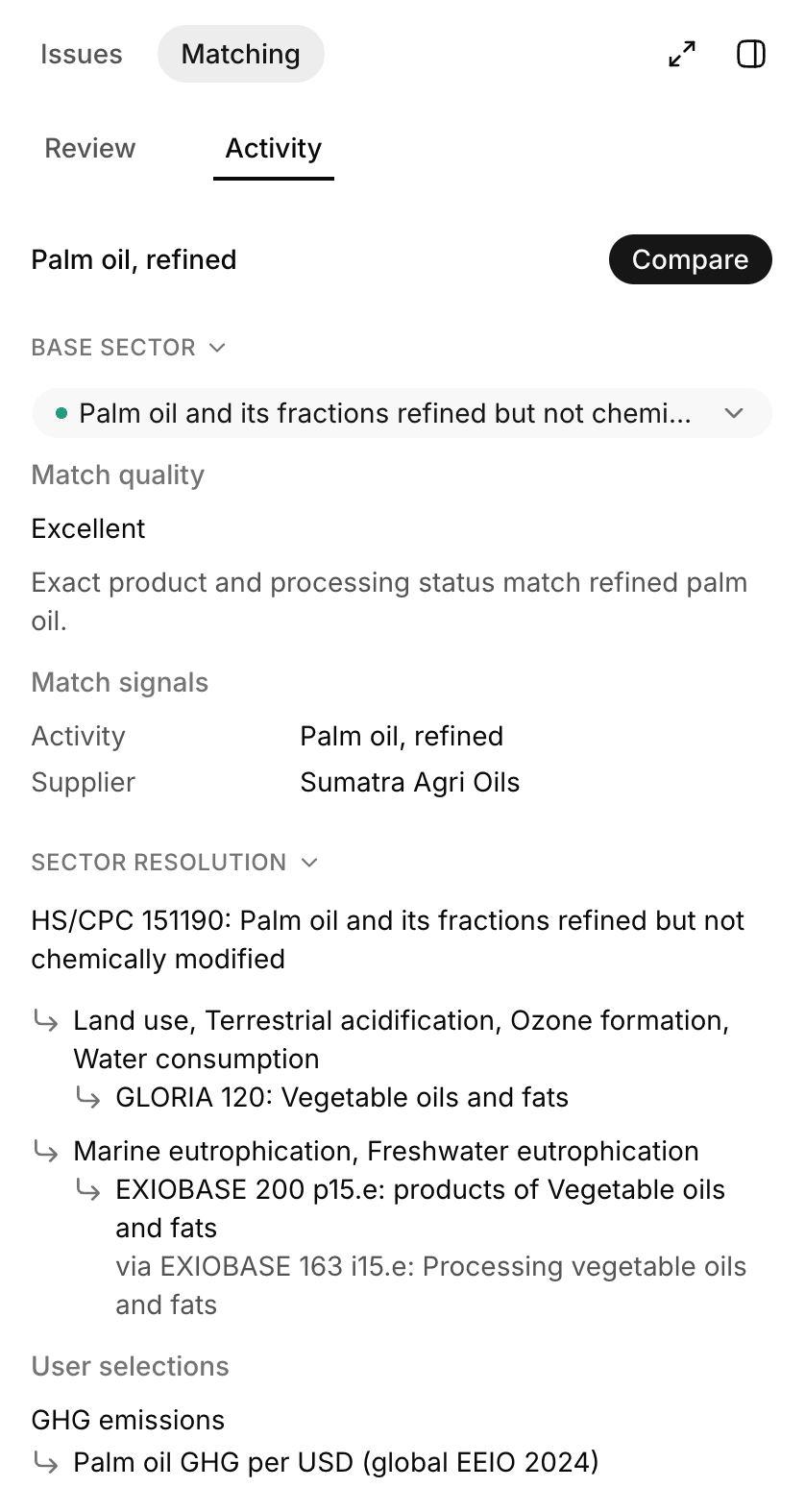
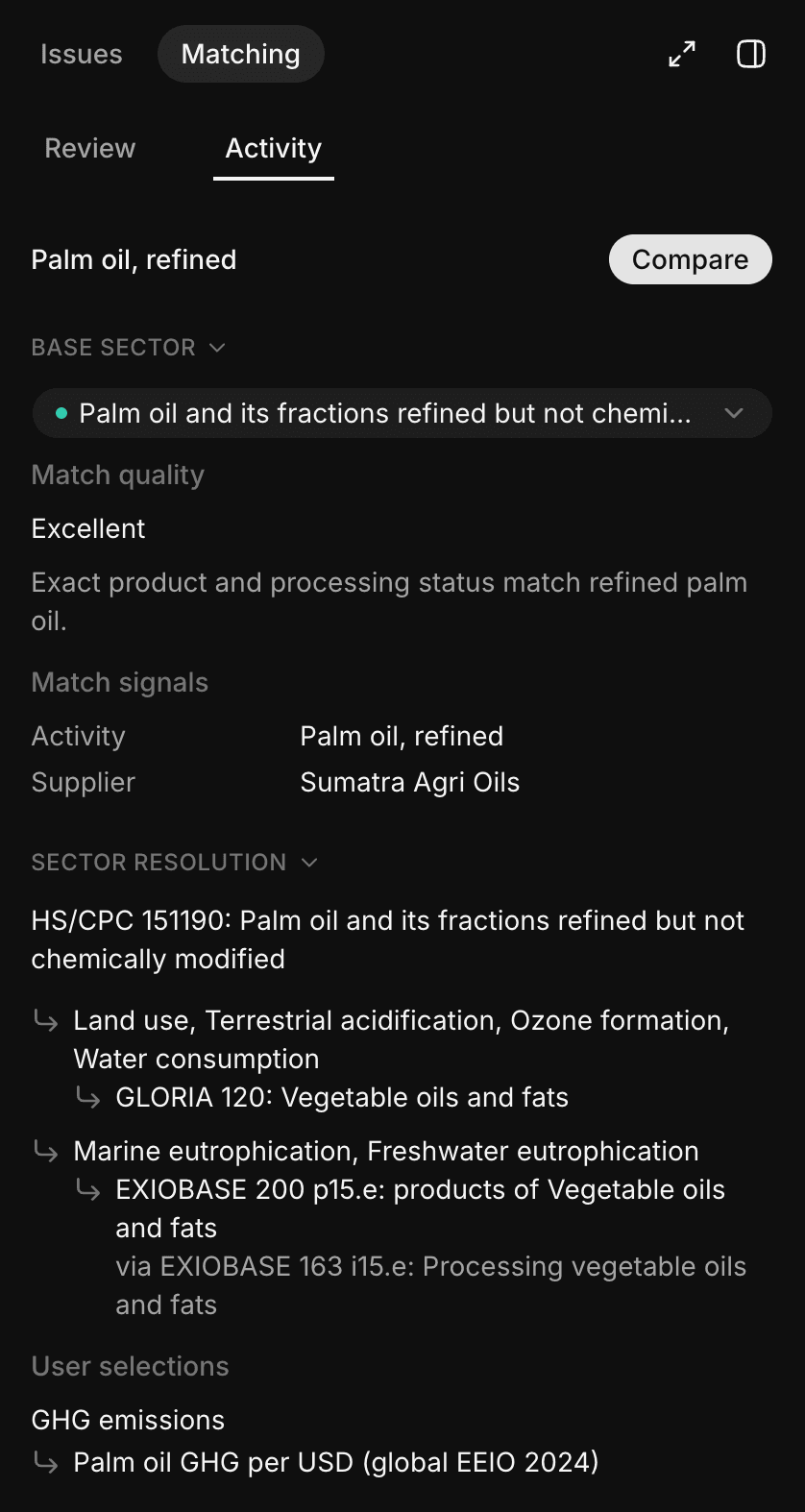
- Base sector: The sector, its match quality, and the judge's reason for the pick.
- Match signals: The Activity and Supplier that sector matching used.
- Sector resolution: The metric sectors the base sector resolves to, grouped by the metrics they serve. Some resolve through an intermediate sector, shown as "via".
- User selections: The impact inputs and sectors you set for single metrics.
- Metrics: Each metric's result. Switch between Intensity, Characterization, Pressure, and Impact.
To refine the results, select another base sector at the top of the panel, which changes all 17 metrics, or override a single metric. Nios saves each change and recalculates the activity right away.
Override one metric
Expand the metric in the panel, or open its cell in the grid:
- Another sector: Select a different metric sector for this metric only.
- An impact input: Select your own result or factor. See Impact inputs.
- Another country: Change the factor geography for this metric with the country selector.
Compare before applying
To try a different base sector or metric selections without saving them, click Compare first. The panel shows how each metric would change. Click Apply to save the changes, or Cancel to discard them.