Impact inputs
Replace default factors with your own results and factors.
Nios's default factors are sector averages. When you have better data, such as a supplier's product footprint or your own measurement, an impact input replaces the default for one environmental pressure (metric), such as GHG emissions, of one or more activities.
Data quality tiers
Every impact input has a tier, which decides how Nios uses it:
| Tier | In the app | What it is | Needs on the activity | Example |
|---|---|---|---|---|
| A | A = direct result | An absolute result for one activity, no denominator | Nothing | Wheat flour GHG from the supplier's environmental product declaration (EPD): 2,350,000 kg CO₂e |
| B | B = quantity IF | A factor per unit of quantity | Quantity and Unit | Cocoa mass land occupation: 21.4 m² per kg |
| C | C = spend IF | A factor per EUR or USD of spend | Spend and Currency, plus Activity year and Country of production if it has a reference year | Palm oil GHG: 2.6 kg CO₂e per USD |
IF stands for intensity factor. For a metric, Nios uses the best data available, in this order: a Tier A result, then a Tier B factor, then your Tier C factor, then the Nios default.
Create an impact input
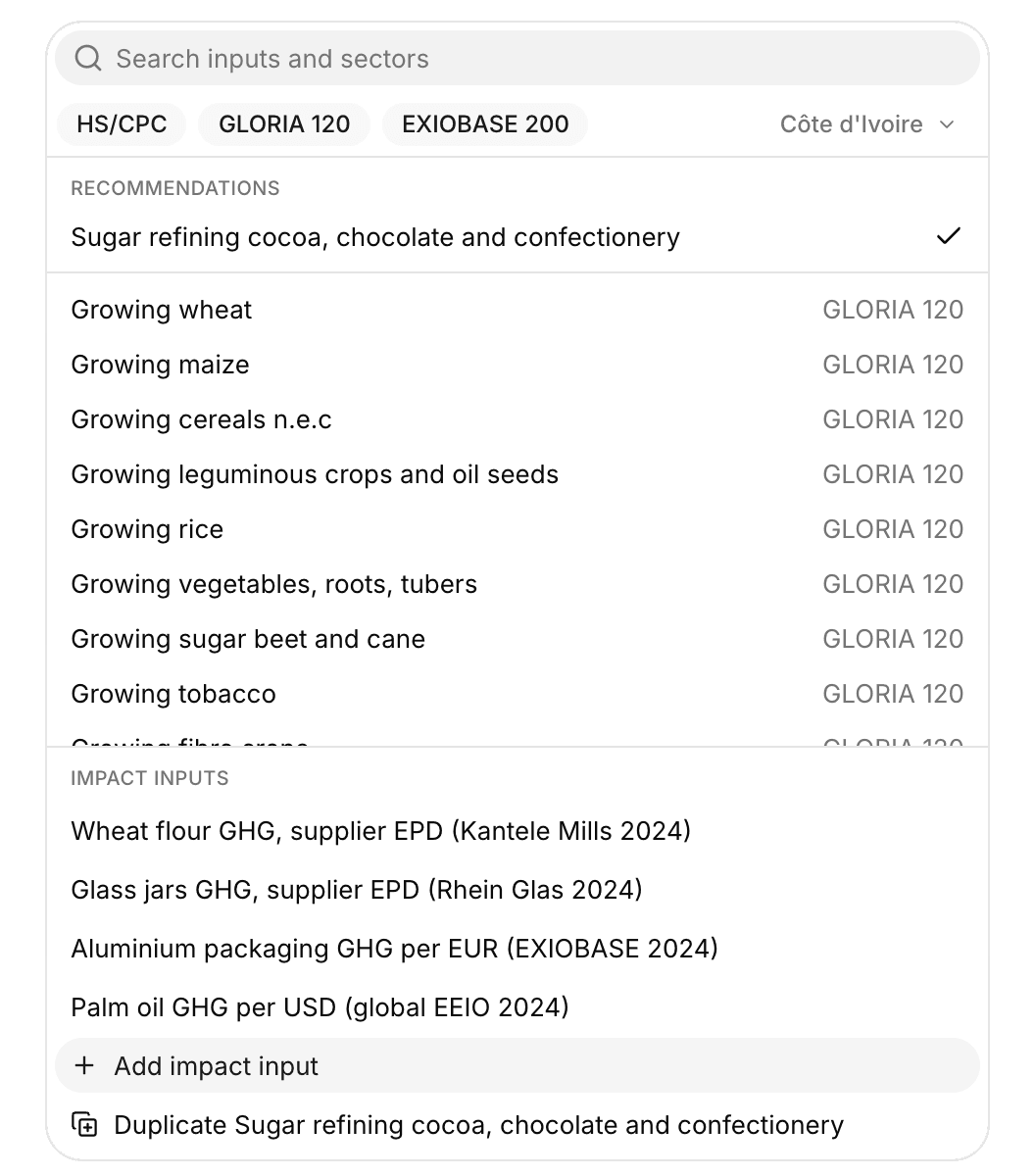
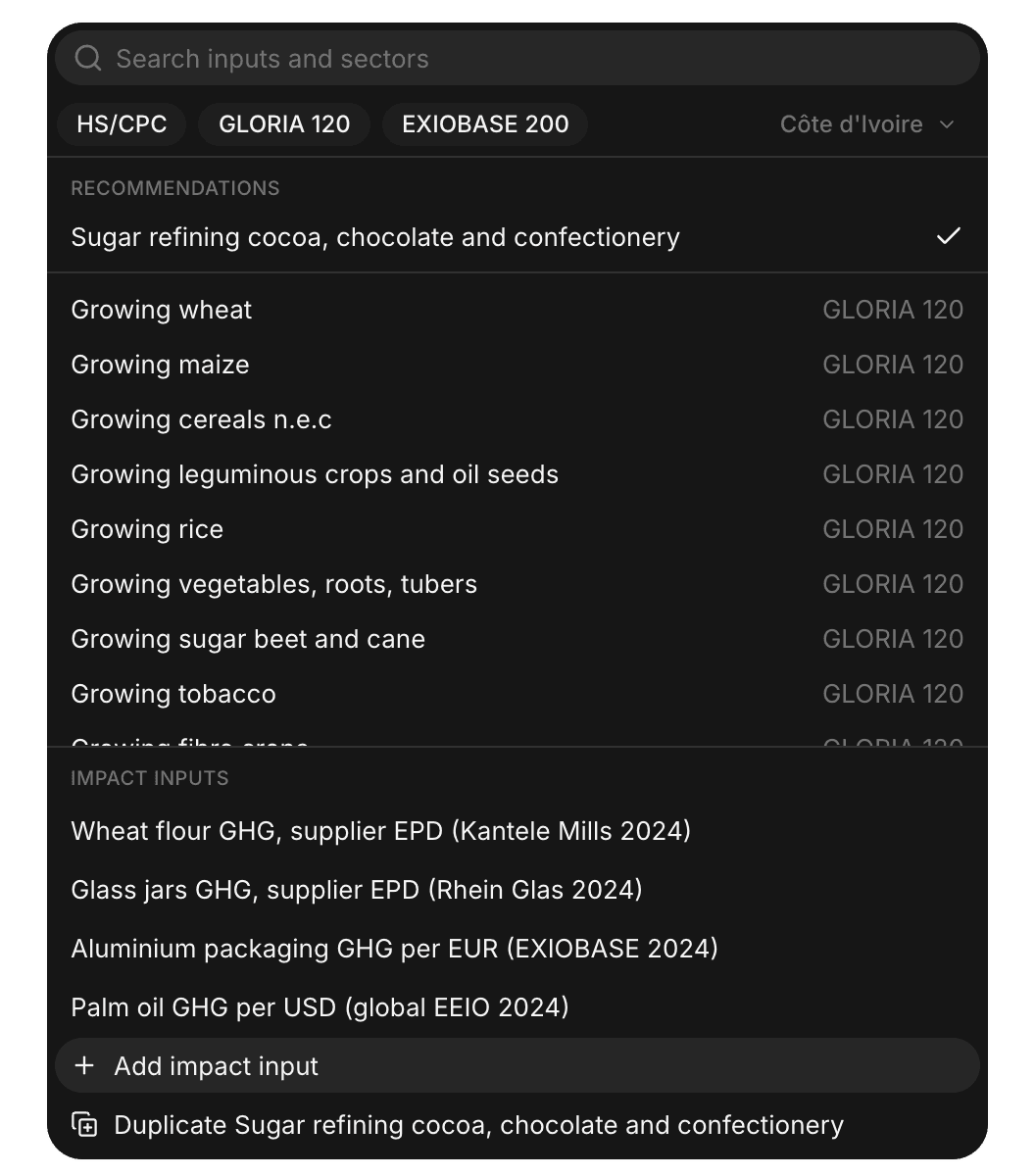
You create an impact input from the metric cell of an activity on Activities, or in the Impact inputs grid. In a metric cell, the actions are at the bottom of the list, below the impact inputs for that metric.
From scratch
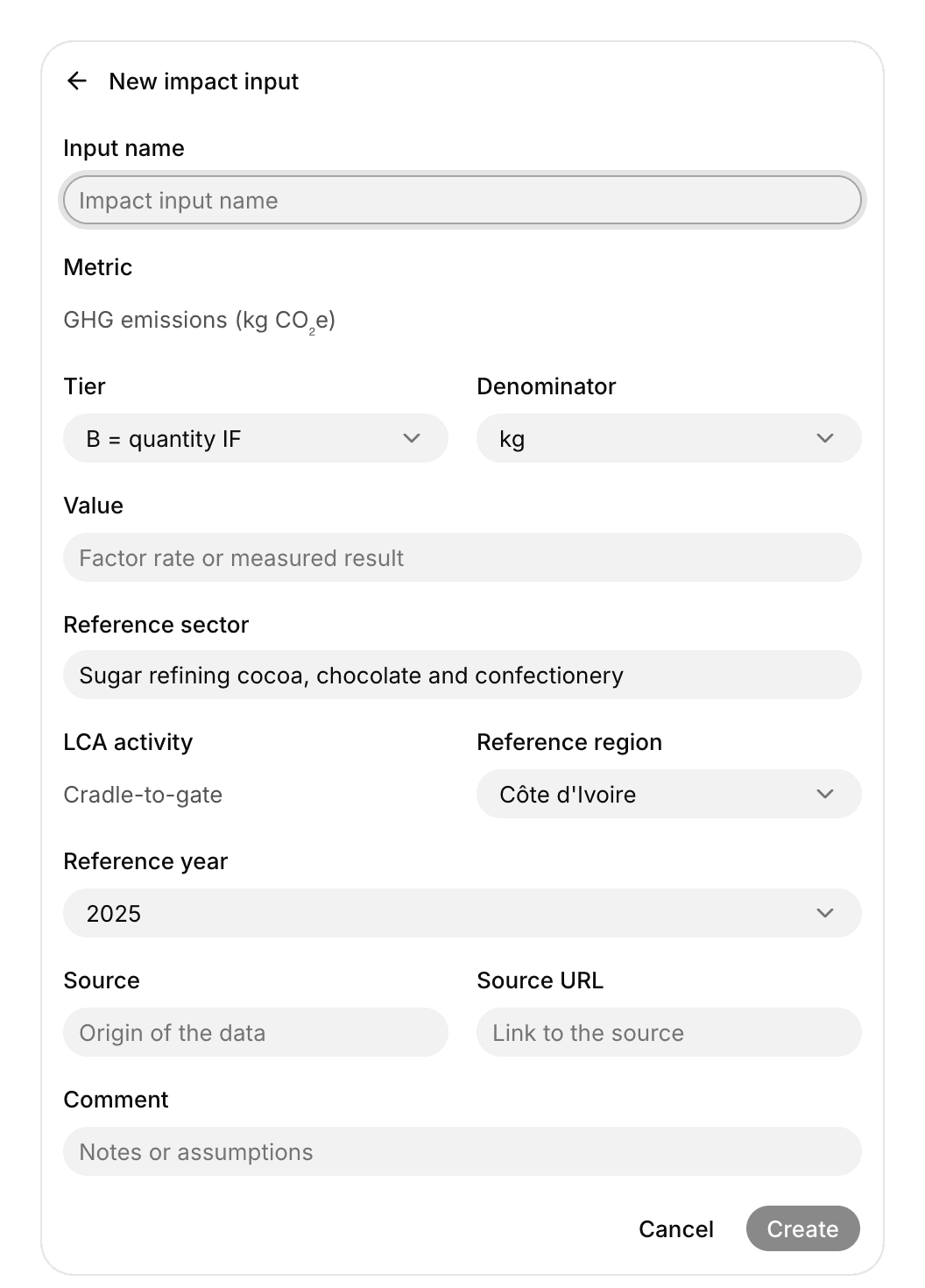
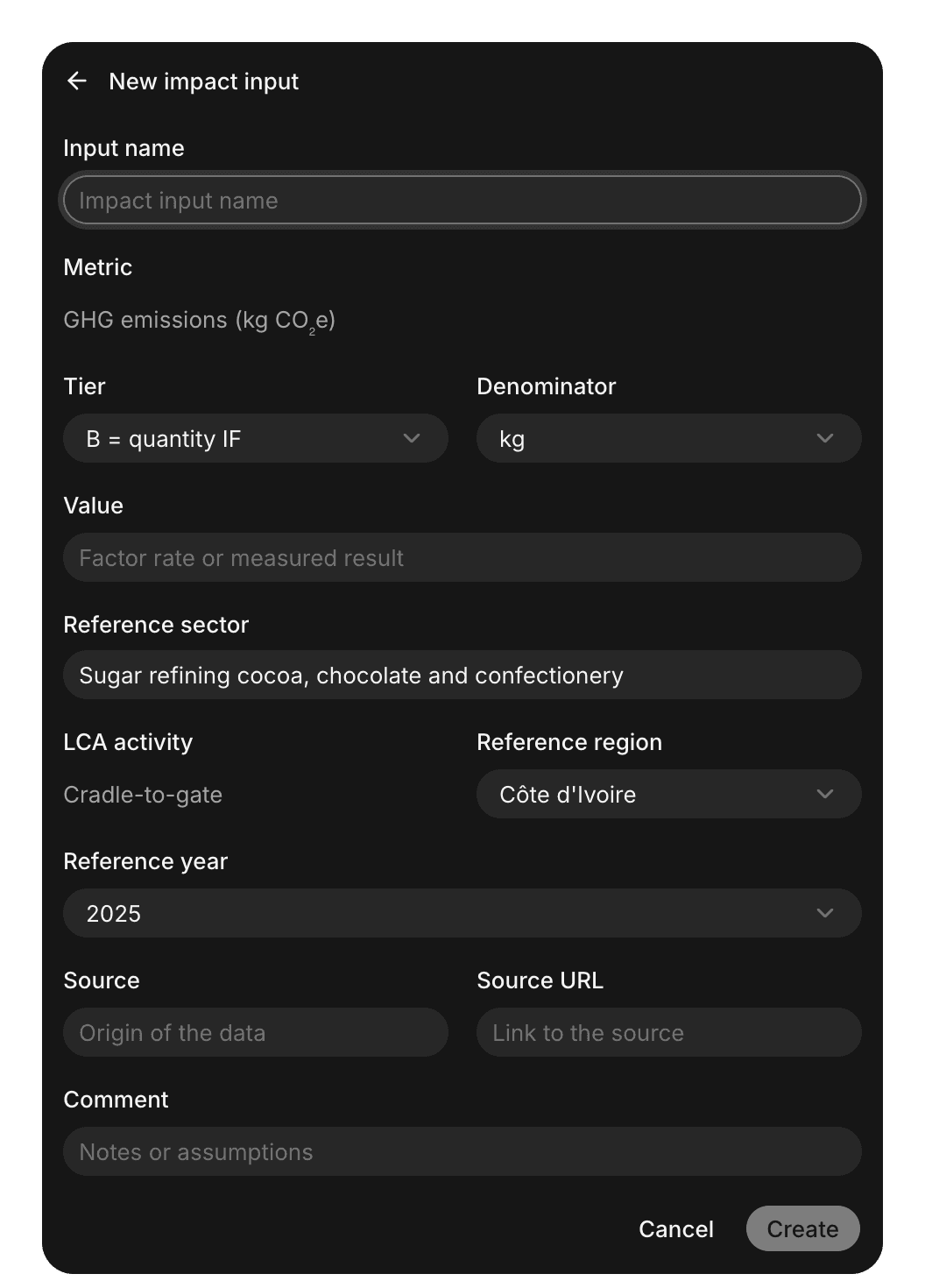
Choose Add impact input in an activity's metric cell, or add a row in the Impact inputs grid. From a cell, the form starts with the cell's metric, country, and sector, a denominator that fits the activity, and its activity year. You add the name, the value, and the source. See Spreadsheet template for every field.
Duplicate an impact input
In a metric cell that uses an impact input, choose Duplicate followed by the input's name. In the Impact inputs grid, select rows and choose Duplicate. The copy has every field except the name. Use it for variants, such as the same supplier's factor for another year or region.
Duplicate a system sector
In a metric cell that uses the Nios default or a selected sector, choose Duplicate followed by the sector's name. The copy is the system factor behind the cell as a Tier C spend factor, in the dataset's currency and reference year. Unedited, it calculates the same result as the default.
This is the easiest way to refine a default with supplier data. If your figure uses another currency, year, or unit, change those fields too.
Example: Duplicate the default GHG emissions factor for "Palm oil, refined". The GLORIA factor is per USD, so you only replace its value with the supplier's figure of 2.6 kg CO₂e per USD.
Apply an impact input
Open the metric cell of an activity and select the impact input. The impact inputs for that metric are at the bottom of the list, below the sectors. One impact input can serve many activities, except a Tier A result, which belongs to one activity.
Common issues
Typical issues are an impact input for the wrong metric, a unit that doesn't fit the factor's denominator, or a Tier A result already used on another row. See Issues for every message and its fix.
The Coverage tab on Impacts shows how much of your results comes from each tier.